Adobe Acrobat printing issues on macOS
To print via SafeQ, you need to add a driver and a network printer to your system. Please follow the instructions below.
Installing the driver
The downloaded PPD file must be copied to a system folder that is hidden by default. This operation also requires administrator privileges.
- Open the user’s home folder in Finder.
- In the top menu bar, click View > Show View Options.
- Check Show Library Folder at the bottom of the window.
- Copy the file SafeQ.ppd to the folder /Library/Printers/PPDs/Contents/Resources.
Please make sure the file is located in the system Library folder (/Library) and not in the user variant (~/Library). If the driver is not placed correctly, the operating system will not offer it for selection.
Adding the printer
Once the driver installation is complete, you can proceed to configure the network printer.
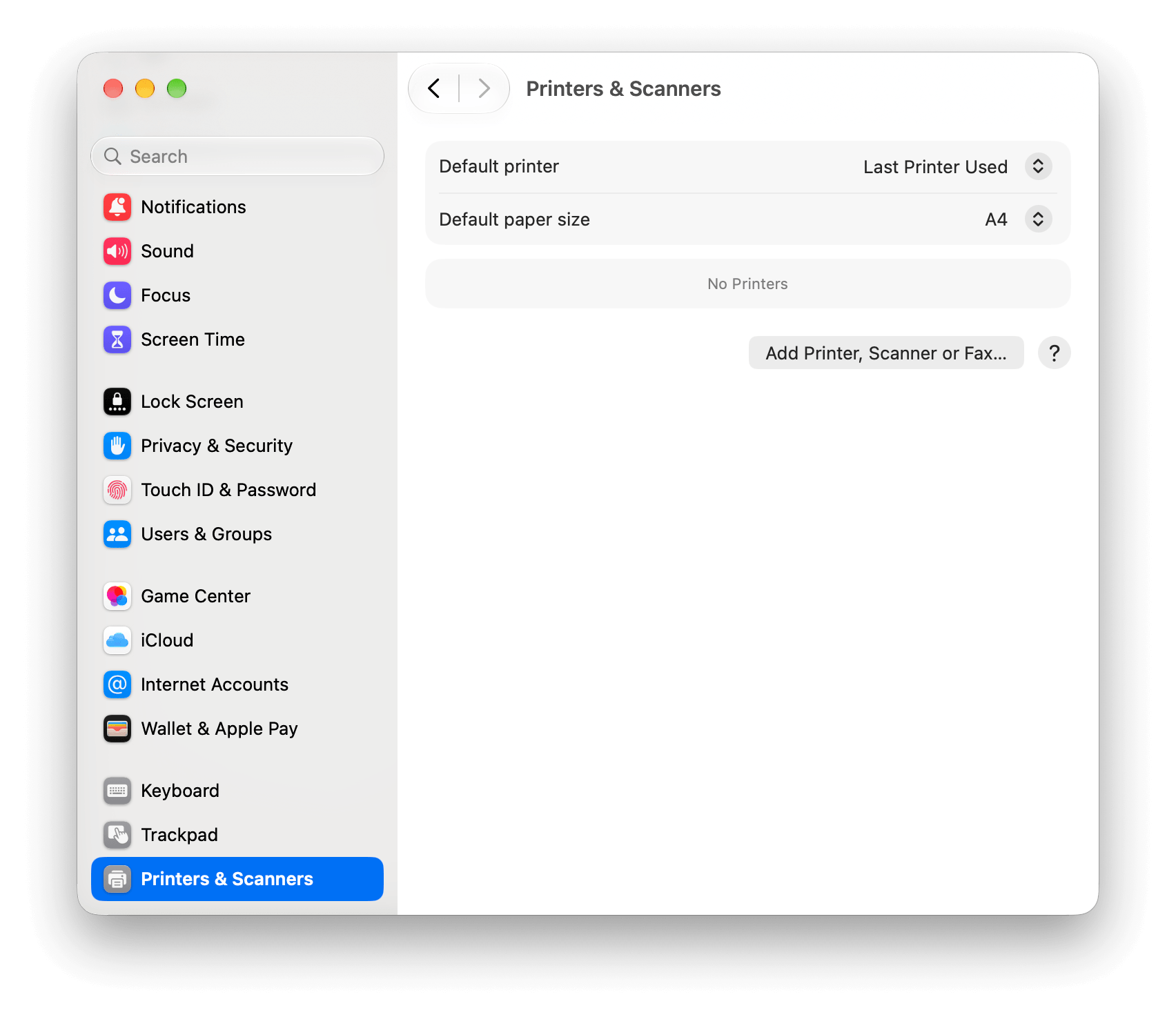
- Open System Settings.
- In the sidebar, click Printers & Scanners at the bottom of the list.
- Click Add Printer, Scanner, or Fax.
- Click the IP tab.
- Fill in the printer address and queue name:
- Address: (replace abc1234 with your personal number)
- Queue: secure
- In the Use field, choose Select Software...
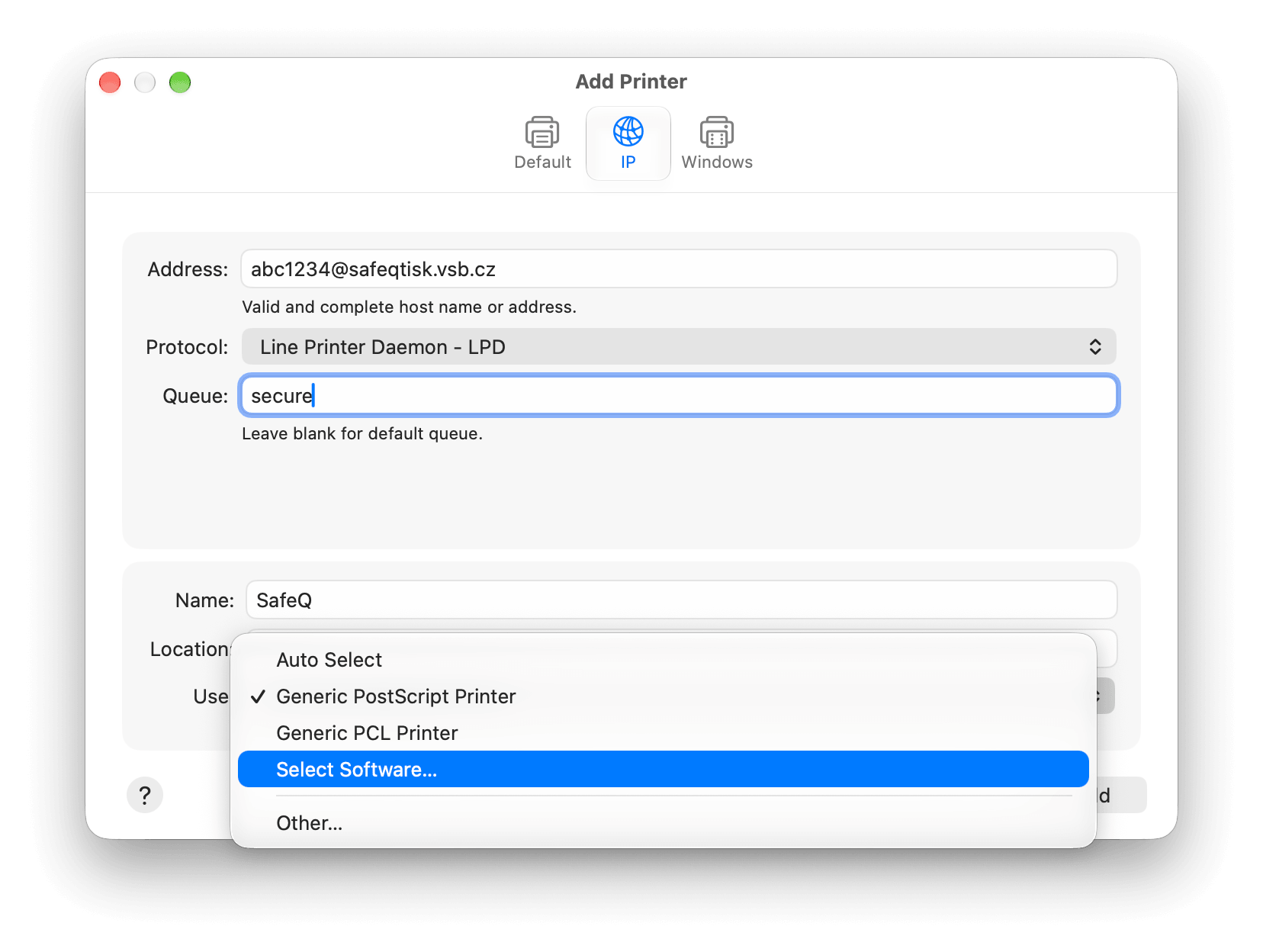
- Select VSB-TUO SafeQ from the list and click OK.
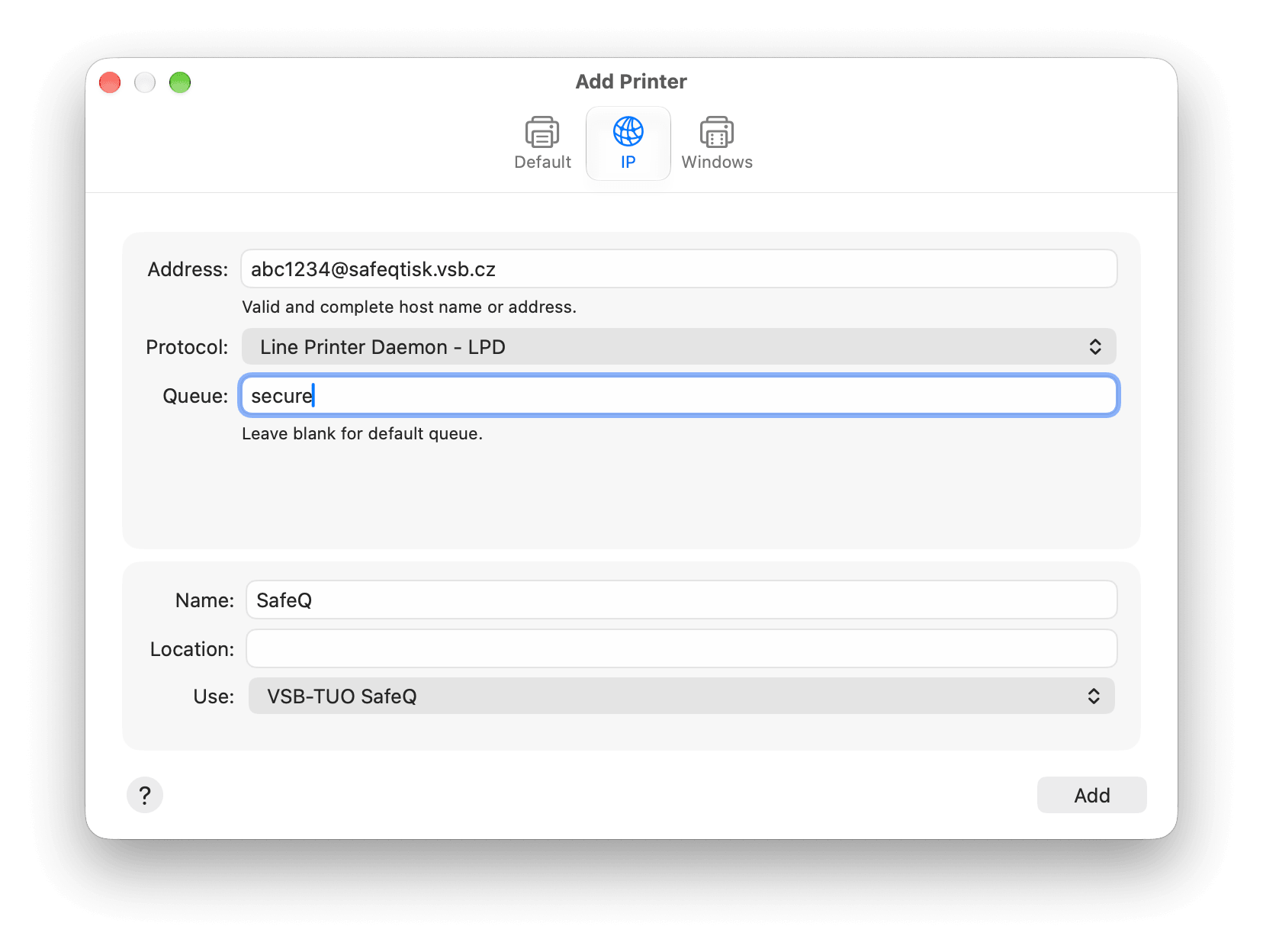
- Click Add.
Choosing the colour mode
By default, the SafeQ printer always prefers black-and-white printing. If you want colour output, this setting can be changed in the system print dialog.
- Expand the Printer Options section.
- Click the ⓘ symbol next to Printer Features.
- Select the color mode Color.
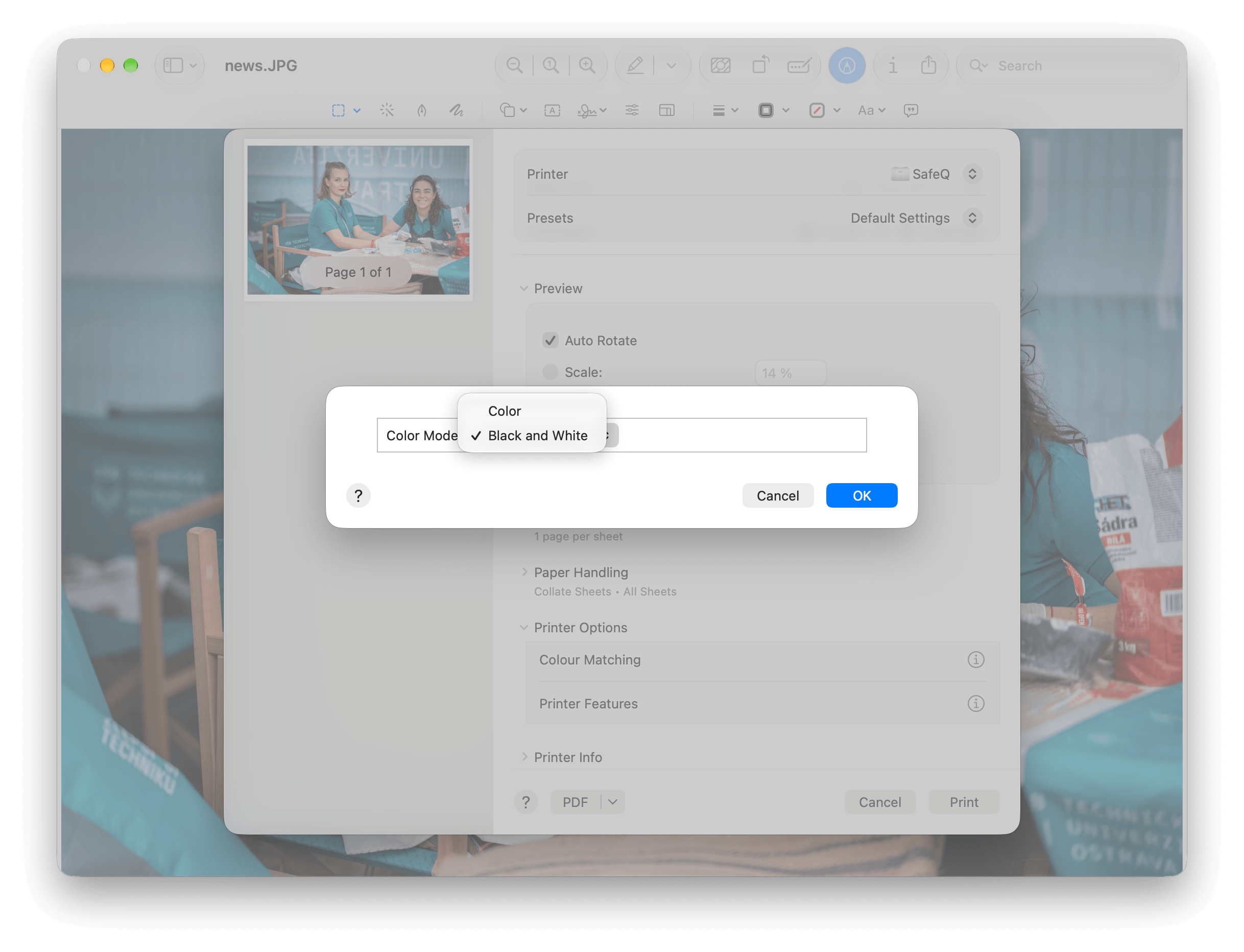
- Click OK.